


Ever wondered where all those downloads go on your iPhone? It’s like they vanish into a digital Bermuda Triangle. One minute you’re excitedly tapping away, and the next, you’re left scratching your head, wondering if your favorite app has gone on a permanent vacation.
Understanding Downloads on Your iPhone
iPhone users often wonder about various types of downloads and their locations. Knowing where to look simplifies the process and enhances the user experience.
Types of Downloads
Downloads on an iPhone generally fall into several categories. Apps come from the App Store, while media files come from platforms like iTunes or streaming services. Documents can download from email attachments or cloud storage apps. Additionally, images and videos might save directly from the web or messaging apps. Recognizing these categories aids in efficiently tracking what users download.
Locations of Downloads
Finding downloads on an iPhone depends on the type of download. Apps appear on the home screen after installation. Media files like songs and movies show up in the Music or TV app. Documents typically save within the Files app for easy access. Messages may house downloaded images or videos, accessible through the respective conversation threads. Identifying the correct location for each download type enables quicker access and satisfaction.
Finding Downloaded Files
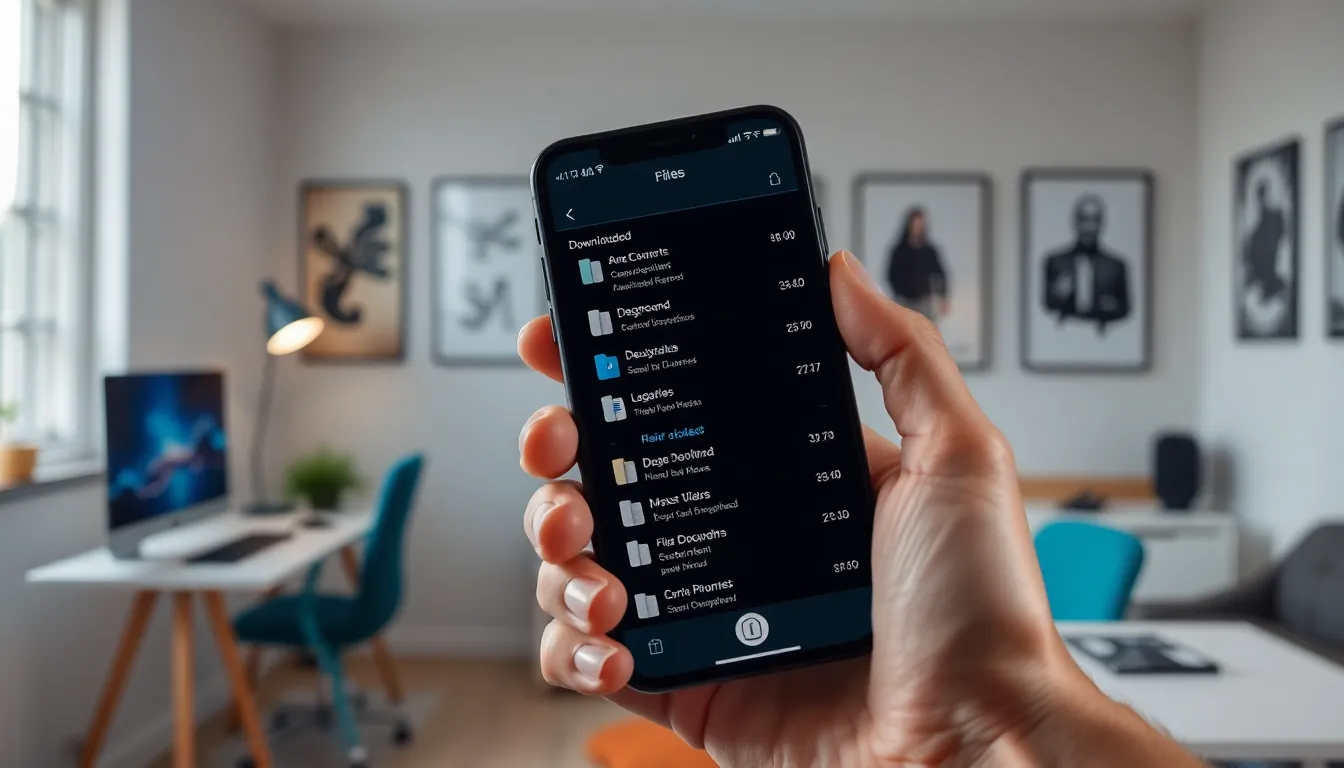
Spotting downloaded files on an iPhone might seem challenging. However, several reliable methods simplify the process.
Using the Files App
The Files app serves as a central hub for saved documents and downloads. Open the app and browse through locations like “On My iPhone” or “iCloud Drive” to locate files. Tap the “Browse” tab at the bottom for easy access. Look for recent downloads under the “Recents” section. Files app showcases all formats, including PDFs, Word documents, and spreadsheets, enhancing organization.
Checking Specific Apps
Certain apps store downloaded content in unique areas. For instance, music from iTunes stays within the Music app, while videos from streaming services appear in their designated apps. Moreover, image and video files downloaded from browsers or messages are typically saved to the Photos app. Access each app to find specific downloads directly. Checking the settings in each app can also provide options for managing files better.
Viewing Download History
Knowing how to check download history on an iPhone helps users locate their files easily.
Safari Download History
To access Safari’s download history, users open the browser and tap the “Downloads” icon located at the bottom right corner. The tab displays a list of files downloaded, including documents and images. Tapping any entry redirects users to the file’s location on the device. Recent downloads appear prominently, providing quick access. Searching for items is hassle-free, as Safari organizes them based on the type and date of downloads. Clearing the history is also simple, ensuring users can manage their files effectively.
App Store Download History
Users can view their App Store download history by launching the App Store and navigating to their profile icon at the top right. Selecting “Purchased” reveals a list of all apps purchased or downloaded using the Apple ID. Installed apps display with a blue checkmark, while apps not currently on the device are listed with a cloud icon for easy re-download. The history includes both free and paid apps. Users can verify app-specific information, such as the date of purchase and transaction details.
Troubleshooting Download Issues
Download issues on an iPhone can disrupt the user experience. Identifying common problems simplifies the process of managing downloads effectively.
Common Problems
Users face multiple challenges when downloading files on an iPhone. Missing apps often arise due to restrictions or app deletions. Incompatible file formats can also prevent successful downloads. Network issues, including weak Wi-Fi or cellular signal, frequently lead to incomplete downloads. Additionally, software glitches may hinder the download process or result in crashing apps. Resolving these common problems helps users keep their downloads organized.
Fixing Download Errors
Fixing download errors requires a few straightforward steps. Restarting the iPhone can often resolve temporary glitches affecting downloads. Verifying network connections ensures a stable internet environment for downloading. Checking for software updates guarantees that all apps run smoothly with the latest features and fixes. Clearing browser caches removes any potential file conflicts that disrupt downloads. Finally, resetting network settings restores the iPhone’s connectivity and can resolve persistent download issues.
Navigating downloads on an iPhone doesn’t have to be a frustrating experience. By understanding where different types of files are stored users can easily access their apps media and documents. The Files app serves as a valuable tool for managing downloads while specific apps provide unique storage solutions for their content.
Exploring the settings of each app can further enhance file management. With the right knowledge users can quickly locate their downloads and troubleshoot any issues that arise. This proactive approach not only simplifies the user experience but also empowers iPhone users to take full advantage of their device’s capabilities.